In this section, we will explore how to implement VaultsPay payment SDK in any web application. This method involves redirecting to the VaultsPay payment page to complete the transaction. Nevertheless, If you want to implement Direct (server to server) payment processing you have to follow the same initial steps as specified in this section.
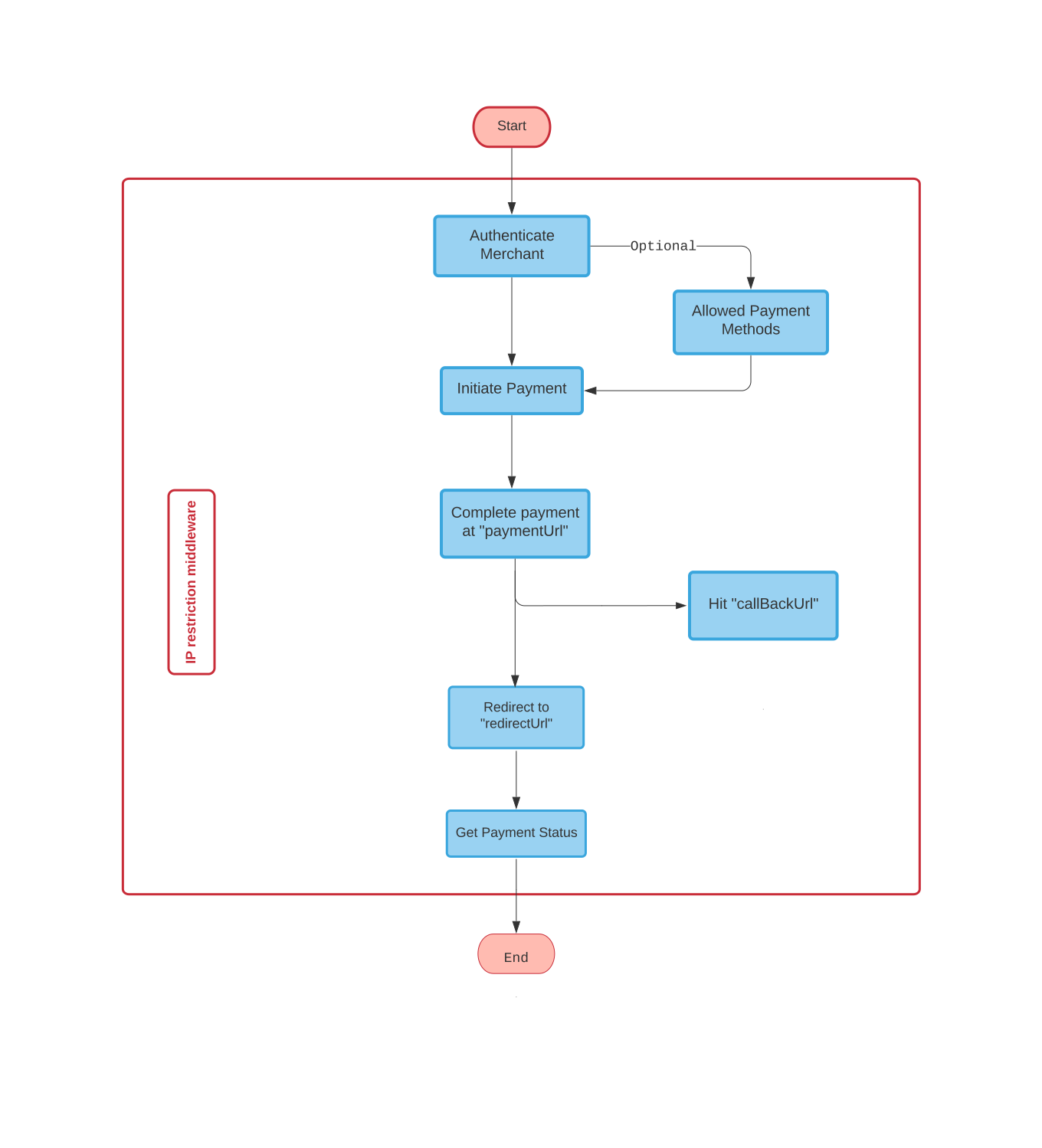
Authenticate Merchant
Firstly, you need to get an “accessToken” to initiate a transaction on VaultsPay. Authenticating merchant involves checking merchant credentials, whitelist IPs, and the privilege to perform an action. All subsequent API requests require AccessToken to make a request.
Getting API Credentials
You can get your API credentials by navigating to Dashboard > Header > API Keys on your VaultsPay merchant account. Here you can get the clientId and clientSecret keys.
By default, when requesting a token, the response includes store and channel details. If you only need the token without these details, you can include "storeDetails": 0 in the request body.
API Request
POST: https://testapi.vaultspay.com/public/external/v1/merchant-auth
					{
    "clientId": "ID-1111111",
    "clientSecret": "SECRET-XYXYXYXY-XYXY-XYXY-XYXY-XYXYXYXYXYXY"
  }
API Response
|
code |
200 for success 400 for error. |
|---|---|
|
data |
All reponse details data is inside data object. |
|
access_token |
If the request is validated you will get an access_token which you will use in subsequent API requests. |
|
token_expiry |
token_expiry is the number of seconds after your token expired. |
|
stores |
One merchant can have multiple stores to collect payments from different branches and manage them separately. |
|
storeName |
storeName is the title or name given to a store. |
|
terminalName |
Each store can have multiple terminals to collect payments. |
|
channelName |
channelName specifies the medium a customer use to complete the transaction. |
|
channelCode |
channeCode also uniquely refers to the channelName. |
					{
    "message": "Successful.",
    "code": "200",
    "data":
      {
        "access_token": "eyJ0eXAiOiJKV1QiLCJhbGciOiJIUzI1NiJ9...",
        "token_expiry": "7200",
        "stores":
          [
            "storeName": "John Doe",
            "terminalName": "John Doe",
            "channelName": "web",
            "channelCode": "CHN_xyxyxyxyxyxyx"
          ]
      }
  }
Important!
Always include the accessToken you’ve received in this API in the headers of all subsequent APIs. Your API request will be denied if it does not include accessToken in the headers.
Allowed Payment Methods
In order to manage separate business entities for a merchant, you can use multiple stores to process customer payments. In this API, you will get the list of all stores you have procured to receive payments.
Manage finances in a smart way!
Try to use dedicated stores for each separate entity of your business. In this way, it will make it easier for you to manage your branch finances separately.
API Request
|
currencyCode |
Send currency code from the following list. |
|---|---|
|
channelName |
The channelName of your store. You can get this attribute from accessToken API's response. |
|
accessToken |
Include in headers. The access_token you haved received from Get AccessToken API. |
POST: https://testapi.vaultspay.com/public/external/v1/get-vaultspay-allowed-payment-methods
					{
    "currencyCode": "AED",
    "channelName": "web"
  }
API Response
|
name |
Payment method name. |
|---|---|
|
code |
This is the schemaCode you will use to initiate a transaction in the next step. |
|
smart_routing |
Smart routing will automatically detect alternative payment routes if one link is down. |
|
currency |
Allowed currency code for a specific store. |
					{
    "message": "Successful.",
    "code": "200",
    "data":
      [
        {
            "name": "VISA",
            "code": "SCM_01",
            "currency":
            {
                "id": "1",
                "name": "AED Dirham",
                "code": "AED",
            },
            "smart_routing": "false"
        }
      ]
  }
Initialize Payment
In this step, you will specify payment details for a transaction. After initiating a transaction at VaultsPay, a customer will finally be able to pay.
API Request
|
schemaCode |
Type (Array or String): Specify which scheme methods you want to use for this transaction. Use json string for multiple payment methods i.e; ["SCM_01", "SCM_04", "SCM_03"] or SCM_01 for single mode. |
|---|---|
|
amount |
The amount you want to charge your customer. |
|
callBackUrl |
This will automatically be invoked from the VaultsPay server to client server with the following attributes: vpTransactionId and status
|
|
redirectUrl |
Once a transaction has been completed successfully, customer will be redirected to this URL. |
|
expiryInSeconds |
A customer can pay within expiryInSeconds for this transaction. After that the paymentUrl will expire. |
|
channelName |
The channel you want to use for your transaction. |
|
schemaCode |
Specify the schema you want to use to complete this transcation. |
|
clientReference (Optional) |
Reference ID or token you will use to identify your customer. |
POST: https://testapi.vaultspay.com/public/external/v1/initialize-merchant-payment
  {
    "amount": "100",
    "callBackUrl": "https://website.com/callbackURL",
    "redirectUrl": "https://website.com/paymentInvoice",
    "expiryInSeconds": "7200",
    "channelName": "web",
    "schemaCode": "SCM_01",
    "clientReference": "ABC_8daDT8v5dfew61sdS5"
  }
API Response
|
paymentUrl |
A customer can complete the transaction by going to this URL and completing payment details. |
|---|---|
|
paymentId |
VaultsPay will generate a unique transaction ID for each transaction. You can use this payment ID to get details later on. |
					 {
    "message": "Successful.",
    "code": "200",
    "data":
      {
        "paymentUrl": "https://sdk.vaultspay.com/payment-method?paymentId=AP-PL-CB295ACF-49D0-404F-A069-7BB8EB03EC78",
        "paymentId": "AP-PL-CB295ACF-49D0-404F-A069-7BB8EB03EC78"
      }
  }
Complete Payment
In your web application, redirect your customer to paymentUrl. On this page, the user will enter card details to complete the transaction. To check the status of a transaction whether it’s completed or not use the Get Payment Details API.
If you don’t want to redirect your customers to fill in card details – which you may already have collected or stored somewhere – then you can proceed to the Direct Payment module. In this way, you can avoid redirecting your customer to the external “paymentUrl” for payment completion